So, my current-as-of-writing wordpress setup is a wordpress container on proxmox, through cloudflare tunneling since I don’t have a static IP to my server.
If you’re interested in replicating it, follow these steps:
- Install ProxmoxVE onto a server
- set it up
- Install a wordpress container
- Install a cloudflared container
- configure your cloudflare tunnel
- change a wordpress setting
- profit
For the sake of brevity I won’t walk you through installing and setting up proxmox. There are plenty of guides for that elsewhere.
I will give a basic overview of everything else, though.
WordPress
To install a wordpress container, go to community-scripts.github.io and search for wordpress, and install it by running the given command in the proxmox host’s shell, through the web ui.
Once the container is running, I configured and accessed the wordpress site via ssh port forwarding, like so.
ssh popolar -L 8080:192.168.1.209:80 -L 4430:192.168.1.209:443
In this command, popolar is the hostname of my host proxmox server that the wordpress container is running on, and 192.168.1.209 is the ip address of the wordpress container.
If you run the same command, you’ll have to change “popolar” to your proxmox server’s hostname or IP address, and you’ll have to change “192.168.1.209” to your wordpress container’s IP Address.
What I’m doing with this command is ssh’ing into the host, and telling it to direct all traffic that goes to my laptop”s localhost:8080 to the proxmox host’s 192.168.1.209:80, so that I can access the wordpress site by navigating to localhost:8080 on my laptop.
Once you’ve set up wordpress, you can proceed to install cloudflared.
Cloudflared
To install a cloudflared container, go to community-scripts.github.io/ProxmoxVE/ and search for cloudflared. Now, find the option without DDNS and install it.
Once you have the container, you’ll have to go to dash.cloudflare.com > Zero Trust > Networks > Tunnels, and click “Create a new tunnel” and then select cloudflared.
After that, give it some name, and then proceed to “Install and run connectors”. Now, we’ve already got cloudflared installed in our container, so skip the first box of instructions and find the code line that says “sudo cloudflared service install ...” and copy it. It won’t match that line exactly, because the line will have a token after the “install”
Now, enter the Console of your cloudflared container, and paste it in there and run it. You might have to manually type it in if your copy and paste aren’t working for some reason (mine weren’t). It’s long and will be a pain if that’s the case.
Once you’ve run that, check cloudflare and see if the tunnel status is HEALTHY. If it is, proceed to edit the tunnel, and then you can edit “Published Application Routes” on cloudflare.
As an example of what a route should look like, my config for this site looks like this:
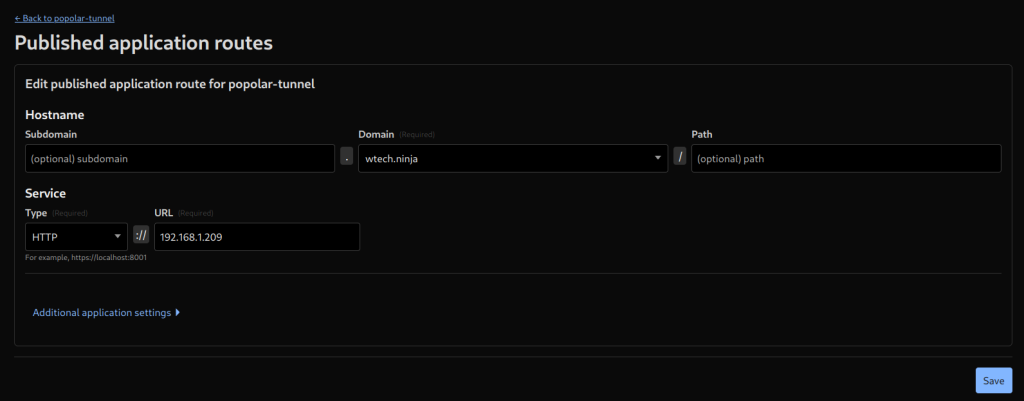
My domain is wtech.ninja, the service type is HTTP and url is 192.168.1.209, because that is the ip address of the wordpress container. (The cloudflared container has it’s own IP address which is different)
Change a wordpress setting
Once you have that done, you’ll want to connect to your wordpress site via ssh port forwarding one last time, and navigate to the General Settings, and change the “WordPress Address (URL)” and “Site Address (URL)” to your proper hostname that you set up on cloudflare, instead of localhost:80 or whatever it is.
Once you’ve changed that, try accessing the wordpress site via it’s hostname instead of using ssh forwarding, and if you’ve done everything correctly and the stars align, it might work!
Random other thing
I was getting some random connection errors and had to go into the Console of my wordpress container, find the file /var/www/html/wordpress/wp-config.php and add this line to it, just above the database settings:
$_SERVER['HTTPS'] = 'on';
Apparently since cloudflare talks to the server via http, but the clients talk to cloudflare via https, I had to set that in that file. It seems to have worked for me, anyway.
Hopefully this info can help someone else, and thanks for reading.

