Author: wtechninja

  • My newer wordpress setup

    So, my current-as-of-writing wordpress setup is a wordpress container on proxmox, through cloudflare tunneling since I don’t have a static IP to my server.

    If you’re interested in replicating it, follow these steps:

    • Install ProxmoxVE onto a server
    • set it up
    • Install a wordpress container
    • Install a cloudflared container
    • configure your cloudflare tunnel
    • change a wordpress setting
    • profit

    For the sake of brevity I won’t walk you through installing and setting up proxmox. There are plenty of guides for that elsewhere.

    I will give a basic overview of everything else, though.

    WordPress

    To install a wordpress container, go to community-scripts.github.io and search for wordpress, and install it by running the given command in the proxmox host’s shell, through the web ui.

    Once the container is running, I configured and accessed the wordpress site via ssh port forwarding, like so.

    ssh popolar -L 8080:192.168.1.209:80 -L 4430:192.168.1.209:443

    In this command, popolar is the hostname of my host proxmox server that the wordpress container is running on, and 192.168.1.209 is the ip address of the wordpress container.

    If you run the same command, you’ll have to change “popolar” to your proxmox server’s hostname or IP address, and you’ll have to change “192.168.1.209” to your wordpress container’s IP Address.

    What I’m doing with this command is ssh’ing into the host, and telling it to direct all traffic that goes to my laptop”s localhost:8080 to the proxmox host’s 192.168.1.209:80, so that I can access the wordpress site by navigating to localhost:8080 on my laptop.

    Once you’ve set up wordpress, you can proceed to install cloudflared.

    Cloudflared

    To install a cloudflared container, go to community-scripts.github.io/ProxmoxVE/ and search for cloudflared. Now, find the option without DDNS and install it.

    Once you have the container, you’ll have to go to dash.cloudflare.com > Zero Trust > Networks > Tunnels, and click “Create a new tunnel” and then select cloudflared.

    After that, give it some name, and then proceed to “Install and run connectors”. Now, we’ve already got cloudflared installed in our container, so skip the first box of instructions and find the code line that says “sudo cloudflared service install ...” and copy it. It won’t match that line exactly, because the line will have a token after the “install”

    Now, enter the Console of your cloudflared container, and paste it in there and run it. You might have to manually type it in if your copy and paste aren’t working for some reason (mine weren’t). It’s long and will be a pain if that’s the case.

    Once you’ve run that, check cloudflare and see if the tunnel status is HEALTHY. If it is, proceed to edit the tunnel, and then you can edit “Published Application Routes” on cloudflare.

    As an example of what a route should look like, my config for this site looks like this:
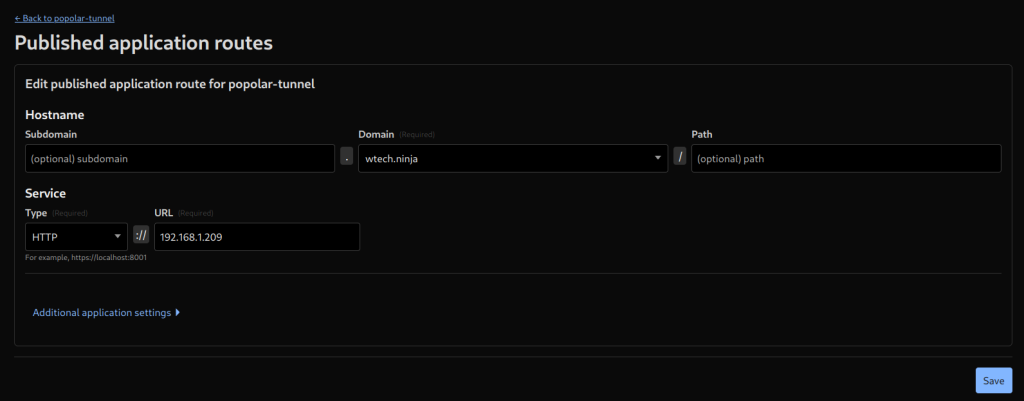
    My domain is wtech.ninja, the service type is HTTP and url is 192.168.1.209, because that is the ip address of the wordpress container. (The cloudflared container has it’s own IP address which is different)

    Change a wordpress setting

    Once you have that done, you’ll want to connect to your wordpress site via ssh port forwarding one last time, and navigate to the General Settings, and change the “WordPress Address (URL)” and “Site Address (URL)” to your proper hostname that you set up on cloudflare, instead of localhost:80 or whatever it is.

    Once you’ve changed that, try accessing the wordpress site via it’s hostname instead of using ssh forwarding, and if you’ve done everything correctly and the stars align, it might work!

    Random other thing

    I was getting some random connection errors and had to go into the Console of my wordpress container, find the file /var/www/html/wordpress/wp-config.php and add this line to it, just above the database settings:

    $_SERVER['HTTPS'] = 'on';

    Apparently since cloudflare talks to the server via http, but the clients talk to cloudflare via https, I had to set that in that file. It seems to have worked for me, anyway.

    Hopefully this info can help someone else, and thanks for reading.

  • How to identify the windings in a 9-wire 3-phase motor

    NOTE: I have diagrams for this but they broke when I migrated my wordpress pages. I will fix it soon – 2025-09-28

    You’re going to need an AC ammeter, voltmeter, and ohmmeter.

    Alright, you’ve got your nine leads in front of you and they aren’t labeled. Fantastic. To start off, you need to figure out if your motor is Wye-connected or Delta-connected.

    If it’s Wye, you will find that 3 of the leads have continuity between them, and then you’ll have 3 windings (2 leads each) that will have continuity between their ends. So, 1 group of 3, 3 groups of 2. The reason three leads have continuity is that three winding ends are already connected from the factory: 10, 11, and 12.

    If it’s Delta, you will find that there are 3 groups of 3 leads with continuity between them, with one “corner” that sits in-between the other two in each set and thus has the same resistance between it and each of the other two leads in its set.

    Now that you’ve identified the motor, proceed to the relevant section to identify the windings.

    Checking Rotation!

    Ignore this for now, this will be handy later.

    If you hook up Phases A, B, and C to lines 1, 2, and 3 the motor should turn CCW from the non-drive end, or CW from the drive end. This is standard rotation for both NEMA and IEC motors.

    Identifying a Wye motor

    Alright, grab the three leads that have continuity, and temporarily mark them as 7, 8, and 9. Now, hook up phase A to 7, B to 8, and C to 9. Bump-start the motor to check rotation. If it’s correct, keep your initial marks. If it spins the wrong way, swap two windings and try again. After you’ve confirmed it spins the correct direction, mark the windings accordingly.

    Now, this is where it gets tricky, so you’ll want to look at the diagram up above to get a better picture of what is going on. Basically, if you connect 4 and 7 correctly, you’ll measure a higher-than-supply voltage from 1 to 8 / Phase B, and from 1 to 9 / Phase C.

    The two measured voltages, 1-8 and 1-9 should be very close. If they aren’t, try again with a different winding until you find the one where they are very close.

    If the two measured voltages are the same, but they’re lower than supply voltage, that means you have the winding hooked up backwards (1-7 instead of 4-7). So, swap the connections and try again.

    Once you find the correct second winding for phase A/7, mark the winding ends accordingly with 4 and 1 and repeat the process for the other two phases/windings.

    When you’ve identified all of them, hook up the motor for whichever voltage configuration you want to use, and then check if it runs smoothly. If it doesn’t, start over.

    If you’re hooking this motor up in the low-voltage configuration, you can test your labeling by connecting it in the high-voltage configuration to the lower voltage before wiring it properly.

    To hook up for High Voltage, connect 4-7, 5-8, and 6-9. This adds the extra windings in series with the original wye.

    • 4 & 7 (L1)
    • 5 & 8 (L2)
    • 6 & 9 (L3)

    To hook up to Low Voltage, connect 4, 5, and 6 to create a second star point, and then connect the new wye in parallel with the existing wye by connecting 1 & 7, 2 & 8, and 3 & 9. So:

    • 4, 5 & 6
    • 1 & 7 (L1)
    • 2 & 8 (L2)
    • 3 & 9 (L3)

    If it is working well, check your current on each line A, B, C to make sure they are roughly equal, and as long as they are, you should be good to go. Congrats! You successfully re-labeled a motor. There’s only a 1 in 3 chance it matches the factory labeling, but that doesn’t matter.

    Identifying a Delta Motor

    Alright. So you’ve got your 3 groups of 3 leads. The first thing you’ll want to do is identify the corners if you haven’t already, so ohm them out until you find the ones that are in-between the others. Refer to the diagram if you want to better understand this.

    Now, mark the corner leads as 1, 2, and 3. (these may change later, so don’t mark it too permanently)

    So one cool thing about delta motors is you can make it rotate using any one set of 3 leads that you have, so what we’ll do then is identify the other two wires in each triangle by checking the motor’s rotation.

    When I do this I normally label the two unmarked wires straight off the bat, and then change them if I’m wrong. So, hook up A to 1, B to 4, and C to 7. Now, bump start the motor to check rotation. If it’s correct, the wire with the B phase is indeed 4. If it spins the wrong way, then the B phase wire is actually 7. Change your connections as needed and relabel accordingly, then move to the next phase.

    For the second winding, we hook up B to 2, C to 5 and A to 7. And again, check rotation and relabel accordingly.

    For the third winding, we hook up C to 3, A to 6, and B to 8. Again, check rotation and relabel accordingly.

    Now that you’ve got all your leads labeled, you’d think you were done, right? Sadly, no. Because, We don’t actually know if we labeled our #2 lead and #3 lead correctly at the start.

    So you’re going to want to start the motor, just briefly, and see if it sounds smooth or if it sounds terrible. If it sounds terrible, swap your two bottom triangles. What that’ll look like is 2 -> 3, 5 -> 6, 7 -> 8. And the other one does the opposite, obviously.

    Now, to hook it up for High Voltage, connect the ends of the three triangles. This is the exact same as the wye high voltage connection, which is:

    • 4 & 7 (L1)
    • 5 & 8 (L2)
    • 6 & 9 (L3)

    To hook it up for Low Voltage, you’ll merge all three triangles. What that looks like is:

    • 1, 6, & 7 (L1)
    • 4, 2, & 8 (L2)
    • 9, 5, & 3 (L3)

    With that done, your motor should run better and you should be set! Congrats! You successfully identified the leads. There’s only a 1/3 chance that they match the manufacturer’s labeling, but that doesn’t matter.

  • 2008 Yaris Hatchback Parts

    I happen to have the Canadian version of this car, 1.5L 5dr, and it annoys me to have to go to manufacturer’s websites and search to find what model bulb or air filter fits my car. So I’m making a centralized list.

    Air Filters

    • Engine, Motomaster: MCA10190

    Taillight Bulbs

    Afaik one of each colour per side. There might be a third bulb that I haven’t touched yet in there as well.

    • Napa: 7506 (clear)
    • Napa: 7507 (amber)

    Headlights

    • Philips: 9003 B1 (Standard, 300hrs)

    Oil & Filter

    Any 5w-30 oil should work, but filters are listed below.

  • Home Assistant w/ docker-compose, on Linux

    Everything on this page should be taken with a grain of salt, because I haven’t been using Home Assistant for that long. Trust nothing. But also if this helps you, then that’s cool too. Most of the things here have been stolen from other guides, and tweaked slightly by me. This guide is probably more for myself than for anyone else.

    A friend of mine introduced me to this app, and honestly it’s the sickest thing I’ve touched in a bit. You’re basically limited only by your imagination and wallet (sadly). Anyway, I’m not here to sell you on it, but I will share my setup and a couple of my automations as examples. From here on, if you see the acronym “HA” just assume it means “Home Assistant”.

    I would definitely not recommend this setup for beginners. Both because I’m not great at explaining things, and because it is mildly complex.

    The majority of this information was stolen from here: https://iotechonline.com/home-assistant-install-with-docker-compose/ so basically, if this guide is too hard to read, try reading that guide which is most likely made by someone who knows what they’re doing.

    The main differences between this and that one are that they have node-red and hass-configurator, and I’ve dropped those but added zwave-js-ui and zigbee2mqtt.

    To start off, make a new folder for your HA data. (I put mine in ~/Documents/Docker/Home-Assistant). Now, in that folder you’re gonna create two files, called “docker-compose.yaml” and “.env”. Also you’re going to want to create a folder in that one called “hass-config“, and create a file name “configuration.yaml” in it.

    Create this folder and file structure in the folder for your HA data as a non-root user:

    folder structure
    
    ├── docker-compose.yaml       (file)
    ├── .env                      (file)
    ├── hass-config               (folder)
    │   └── configuration.yaml    (file)
    ├── mariadb                   (folder)
    ├── mosquitto                 (folder)
    │   ├── config                (folder)
    │   │   └── mosquitto.conf    (file)
    │   ├── data                  (folder)
    │   └── log                   (folder)
    └── zigbee2mqtt               (folder)
        └── configuration.yaml    (file)

    Here’s my docker-compose.yaml:

    docker-compose.yaml
    version: '3'
    services:
      homeassistant:
        container_name: hass
        image: homeassistant/home-assistant
        volumes:
          - ./hass-config:/config
          - /etc/localtime:/etc/localtime:ro
          - /run/dbus:/run/dbus:ro
        restart: unless-stopped
        network_mode: host
        depends_on:
          - mariadb
          - mosquitto
    
      mariadb:
        image: linuxserver/mariadb
        container_name: mariadb
        restart: unless-stopped
        environment:
          MYSQL_ROOT_PASSWORD: "${MYSQL_ROOT_PASSWORD}"
          MYSQL_DATABASE: ha_db
          MYSQL_USER: homeassistant
          MYSQL_PASSWORD: "${HA_MYSQL_PASSWORD}"
          PUID: 1000
          PGID: 1000
        volumes:
          - ./mariadb:/config
        ports:
          - "3307:3306"
    
      zwave-js-ui:
        container_name: zwave-js-ui
        image: zwavejs/zwave-js-ui:latest
        restart: always
        stop_signal: SIGINT
        tty: true
        environment:
                - SESSION_SECRET=mysupersecretkey
                - ZWAVEJS_EXTERNAL_CONFIG=/usr/src/app/store/.config-db
                # Uncomment if you want log times and dates to match your timezone instead of UTC
                # Available at https://en.wikipedia.org/wiki/List_of_tz_database_time_zones
                #- TZ=America/New_York
        networks:
          - zwave
        devices:
          - "/dev/serial/by-id/usb-Silicon_Labs_Zooz_ZST10 700_Z-Wave_Stick_0001-if00-port0:/dev/zwave"
        volumes: 
          - ./zwavejs/store:/usr/src/app/store
        ports:
          - "8091:8091"
          - "3000:3000"
    
      zigbee2mqtt:
        container_name: zigbee2mqtt
        image: koenkk/zigbee2mqtt
        restart: unless-stopped
        volumes:
          - ./zigbee2mqtt:/app/data
          - /run/udev:/run/udev:ro
        ports:
          # Frontend port
          - 8087:8081
        environment:
          - TZ=America/Edmonton
        devices:
          - "/dev/serial/by-id/usb-ITead_Sonoff_Zigbee_3.0_USB_Dongle_Plus_6ed36468addbed118cf1e72d62c613ac-if00-port0:/dev/ttyACM0"
    
      mosquitto:
        image: eclipse-mosquitto
        container_name: mosquitto
        restart: unless-stopped
        ports:
          - "1883:1883"
          - "9001:9001"
        volumes:
          - "./mosquitto:/mosquitto"
        environment:
          - TZ=America/Edmonton
        user: "${PUID}:${PGID}"
        command: "mosquitto -c /mosquitto-no-auth.conf"
    
      portainer:
        ports:
          - "9000:9000"
        container_name: portainer
        restart: unless-stopped
        volumes:
          - "/var/run/docker.sock:/var/run/docker.sock"
          - "./portainer/portainer_data:/data"
        image: "portainer/portainer-ce"
    
      esphome:
        container_name: esphome
        image: esphome/esphome
        volumes:
          - ./esphome:/config
          - /etc/localtime:/etc/localtime:ro
        restart: always
        privileged: true
        network_mode: host
    
    networks:
        zwave:
    volumes:
        zwave-config:
            name: zwave-config

    You’ll probably have to change the “devices” sections in both “zigbee2mqtt” and “zwave-js-ui” to reflect whatever dongles you have, unless you happen to have the exact same ones I do.

    Here’s my .env file:

    .env
    MYSQL_ROOT_PASSWORD=NotMyRealPassword2
    HA_MYSQL_PASSWORD=NotMyRealPassword3
    PUID=1000
    PGID=1000

    Here’s my hass-config/configuration.yaml:

    configuration.yaml
    # Loads default set of integrations. Do not remove.
    default_config:
    
    mqtt:
    powercalc:  
    recorder:
      db_url: mysql://homeassistant:[email protected]:3307/ha_db?charset=utf8mb4
      purge_keep_days: 60
    
    # Load frontend themes from the themes folder
    frontend:
      themes: !include_dir_merge_named themes
      extra_module_url:
        - /local/community/custom-brand-icons/custom
    
    automation: !include automations.yaml
    script: !include scripts.yaml
    scene: !include scenes.yaml

    Here’s my “mosquitto/config/mosquitto.conf“:

    mosquitto.conf
    persistence true
    persistence_location /mosquitto/data/
    log_dest file /mosquitto/log/mosquitto.log
    listener 1883
    allow_anonymous true

    Here’s my “zigbee2mqtt/configuration.yaml“:

    configuration.yaml
    homeassistant: true
    permit_join: false
    mqtt:
      base_topic: zigbee2mqtt
      server: mqtt://mosquitto
    frontend:
      port: 8081
    serial:
      port: /dev/ttyACM0

    (I’ve replaced my passwords with placeholders, if it wasn’t obvious)

    For an explanation of what the different things do:

    • the homeassistant block is the only one that’s actually required, afaik.
    • the mariadb block is for using a better database system with homeassistant, to improve performance.
    • the zwave-js-ui block is used with a zwave dongle to use zwave devices with HA, and the ui is accessible at port 8091.
    • the zigbee2mqtt block is used with a dongle to make it so you can use zigbee devices with HA, and the ui is accessible on port 8087.
    • the mosquitto block is needed for zigbee2mqtt.
    • the portainer block adds portainer on port 9000, it’s a useful tool for managing your docker stuff.
    • the esphome block adds the esphome service, which is fantastic. More about this later.

    To set this up using docker-compose, you’d just download both files, move them to a folder, make any changes you want (probably should change the passwords in the .env file) and run “sudo docker-compose up -d".

    (Myself, I’d run “sudo docker-compose up” and look at the logs for errors, before you run it in the background using “sudo docker-compose up -d“.)

    After that, go to http://<your server’s ip address>:8123 and it should ask you to make an admin account. Congrats! You should be in.

    Later on, to update the docker images, navigate to the folder you have the files in. Then, run these four commands:

    sudo docker-compose down   # Stop HA
    sudo docker-compose pull   # Download new images of HA
    sudo docker-compose up -d  # Start HA again (using new images)
    sudo docker image prune -f # Remove old images to free up space

    Anyway, that’s the basic installation stuff. Here’s some more info on a couple of things:

    portainer

    This is a pretty nice web ui for looking at your docker containers/stacks. I enjoy it. Homepage can be found here: https://www.portainer.io/

    esphome

    This may not be as useful to some people, but basically there is a custom firmware for esp-based wifi smart devices, and this addon makes deploying your custom firmware to them easier, and lets you change their configuration using a nice web ui. I have a few cheap smart plugs and this makes it so much nicer to deal with them. The project’s homepage is here: https://esphome.io/

    Examples of useful automations

    My hardware

    Currently, my server is a ROG GL552VW with an intel i5-6300hq, 4 core 2.3ghz base/3.2ghz boost. It works well for me.

    As far as smart devices go, I have six Globe Electric 50347 smart plugs, because they were on sale at Canadian Tire for $6.93 each, and can be flashed with esphome with relative ease using tuya-cloudcutter.

    Here’s an example esphome config for one of them:

    misc.yaml
    substitutions:
      number: "1"
      device_name: Misc${number}
      device_description: Globe Electric 50347 Smart plug
      friendly_name: Misc Plug ${number}
    
    esphome:
      name: misc
    
    bk72xx:
      board: wb2s
    
    # Enable logging
    logger:
    
    # Enable Home Assistant API
    api:
      encryption:
        key: "<generate a key here https://esphome.io/components/api.html>"
    
    web_server:
      port: 80
      auth:
        username: admin
        password: "NotMyPassword5"
    
    ota:
      - platform: esphome
        password: "NotMyPassword4"
        
    wifi:
      ssid: "NachoBusiness"
      password: "12345678"
      reboot_timeout: "3min"
    
      # Enable fallback hotspot (captive portal) in case wifi connection fails
      #ap:
      #  ssid: "Misc${number} Fallback Hotspot"
      #  password: "NotMyPassword6"
    
    text_sensor:
      - platform: wifi_info
        ip_address:
          name: ESP IP Address
        ssid:
          name: ESP Connected SSID
        bssid:
          name: ESP Connected BSSID
        mac_address:
          name: ESP Mac Wifi Address
          
    sensor:
    
      - platform: wifi_signal
        name: ${friendly_name} Signal
        update_interval: 60s
    
      - platform: hlw8012
        model: BL0937     # note that the model must be specified to use special calculation parameters
        sel_pin:          # I believe that cf_pin reports either Voltage or Current depending on this select pin
          inverted: true  # determine whether true reports Voltage
          number: P24
        cf_pin:           # current or voltage (ele_pin: 7)
          inverted: true  # the logic of BL0937 is opposite from HLW8012
          number: P7
        cf1_pin:          #  Power (vi_pin: 8)
          inverted: true  # the logic of BL0937 is opposite from HLW8012
          number: P8
    
        update_interval: 15s      # How often to measure and report values
        
        # PC191HA measures and returns Voltage OR Current according to the value of sel_pin,
        #   but it can change the value of sel_pin periodically  
        initial_mode: "VOLTAGE"       # reports VOLTAGE or CURRENT
        change_mode_every: 4          # how many times to report before swapping between
            #   reporting Voltage or Current. Note that the first value reported should be ignored as inaccurate
    
        # Adjust according to the actual resistor values on board to calibrate the specific unit
        voltage_divider:  872.357   # LOWER VALUE GIVES LOWER VOLTAGE - Was 775 -wb
        current_resistor: 0.0009  # HIGHER VALUE GIVES LOWER WATTAGE
    
        #
        # how the power monitoring values are returned to ESPHome
        #
    
        voltage:
          name: ${device_name} Voltage
          id:   ${device_name}_voltage
          unit_of_measurement: V
          accuracy_decimals: 1
          filters:
            - skip_initial: 2
        power:
          name: ${device_name} Power
          id:   ${device_name}_power
          unit_of_measurement: W
          accuracy_decimals: 2
          filters:
            - skip_initial: 2
    
        # power should simply be current x voltage -- except that the pc191ha doesn't follow that formula.  
        # Setting current_resistor to give an accurate Amperage does NOT also give the correct Wattage
        # so here I calculate current from power and voltage
        
      - platform: template  
        name: ${device_name} Current
        id:   ${device_name}_current
        unit_of_measurement: A
        accuracy_decimals: 2
        update_interval: "20s"
        lambda: |-
          return (id(${device_name}_power).state / id(${device_name}_voltage).state);
        filters:  
          - skip_initial: 2
    
      - platform: uptime
        name: ${device_name} Uptime
        id:   ${device_name}_uptime
        update_interval: "30s"
    
    light:
      - platform: status_led
        name: "led"
        internal: true
        id: led
        pin:
          number: P6
          inverted: true
    
    binary_sensor:
      - platform: gpio
        pin:
          number: P10
          inverted: true
        id: button1
        filters:
          - delayed_on: 10ms
          - delayed_off: 10ms
        on_click:
          - switch.toggle: outlet
    
      - platform: status
        name: ${friendly_name} status
    
    switch:
      - platform: gpio
        name: ${friendly_name} Outlet
        id: outlet
        pin: P26
        icon: mdi:power-socket-us
        on_turn_on:
          - light.turn_on: led
        on_turn_off:
          - light.turn_off: led
    
    captive_portal:

    I’ll eventually upload some version of this to http://devices.esphome.io, but I want to calibrate the voltage and power on them first, which I haven’t done yet. The basic config was taken from a couple of smart plugs, namely these two:

    https://devices.esphome.io/devices/Globe-Electric-Wi-Fi-Smart-Plug-50329

    https://devices.esphome.io/devices/Arlec-PC191HA-Plug

    If you’re wanting to use this config, you’ll have to replace the api key and all the passwords, and the wifi information.

    Besides all of those, I also have two Aqara USC-01 wall switches, and an Aqara T2 Relay (up above a fan with a light). You can use the Aqara wall switches in decoupled relay mode to provide constant power to the relay, and set the button presses to do things.

    For instance, one press will toggle the first half of the relay, toggling my lights, and a double press will toggle the second half, toggling my fan. I’m pretty happy with it except for the delay.

  • My wordpress setup

    I currently have wordpress running in docker, which I’ve been told is self-updating (dubious, but maybe). And then am using nginx to reverse proxy it.

    This is my docker-compose.yaml for anyone interested:

    services:
    
      wordpress:
        image: wordpress
        restart: always
        ports:
          - 8083:80
        environment:
          WORDPRESS_DB_HOST: db
          WORDPRESS_DB_USER: wordie
          WORDPRESS_DB_PASSWORD: NotMyRealPassword
          WORDPRESS_DB_NAME: wordpress
        volumes:
          - wordpress:/var/www/html
    
      db:
        image: mysql:8.0
        restart: always
        environment:
          MYSQL_DATABASE: wordpress
          MYSQL_USER: wordie
          MYSQL_PASSWORD: NotMyRealPassword
          MYSQL_RANDOM_ROOT_PASSWORD: '1'
        volumes:
          - db:/var/lib/mysql
    
    volumes:
      wordpress:
      db:

    And here is the relevant part of my nginx configuration:

    server {
        if ($host = localhost:8080/) {
    	return 301 https://$host$request_uri;
        }
    
        server_name localhost:8080/;
        listen 80;
        listen [::]:80;
        return 404;
    }
    server {
        server_name localhost:8080/;
        listen 443 ssl;
        listen [::]:443 ssl;
    
        ssl_certificate /etc/letsencrypt/livelocalhost:8080/fullchain.pem;
        ssl_certificate_key /etc/letsencrypt/livelocalhost:8080/privkey.pem;
        include /etc/letsencrypt/options-ssl-nginx.conf;
        ssl_dhparam /etc/letsencrypt/ssl-dhparams.pem;
    
        location / {
    	proxy_set_header Host $host;
    	proxy_set_header X-Real-IP $remote_addr;
            proxy_set_header X-Forwarded-Proto $scheme;
    	proxy_set_header X-Forwarded-For $proxy_add_x_forwarded_for;
            proxy_pass http://127.0.0.1:8083;
    	proxy_redirect off;
        }
    }

    Truth be told, some of those headers might not be needed. I just copied them from some other subdomains.

    The more important thing to do is change your wordpress settings in Settings>General to point to the right domain. I wasted a few minutes figuring that out.

    Anyway, good luck and have fun!